Merging code changes between two files is something most developers handle inside Git - but not every merge happens in a repository. Sometimes you need to combine changes between config snippets, SQL dumps, build scripts, or ad-hoc text files that never touched version control.
This guide covers how to merge code and text online using a browser-based tool, without installing anything or cloning a repo.
When You Need an Online Merge Tool
Git merge is great when both versions live in branches. But these scenarios come up constantly in real work:
- Vendor config updates: You received an updated nginx config from ops and need to merge it with your local changes
- Database schema diffs: Comparing two
pg_dumpoutputs and cherry-picking structural changes - Cross-team collaboration: A teammate pastes their version of a shared script in Slack, and you need to merge their fixes into yours
- Legacy code: Integrating changes from a system that uses FTP, not Git
- Quick patches: Merging a hotfix from production back into a dev config without a full deploy cycle
How Merging Works in BytesBit Compare
BytesBit Compare runs entirely in your browser and supports three types of merge operations:
1. Hunk Merge (Merge an Entire Change Block)
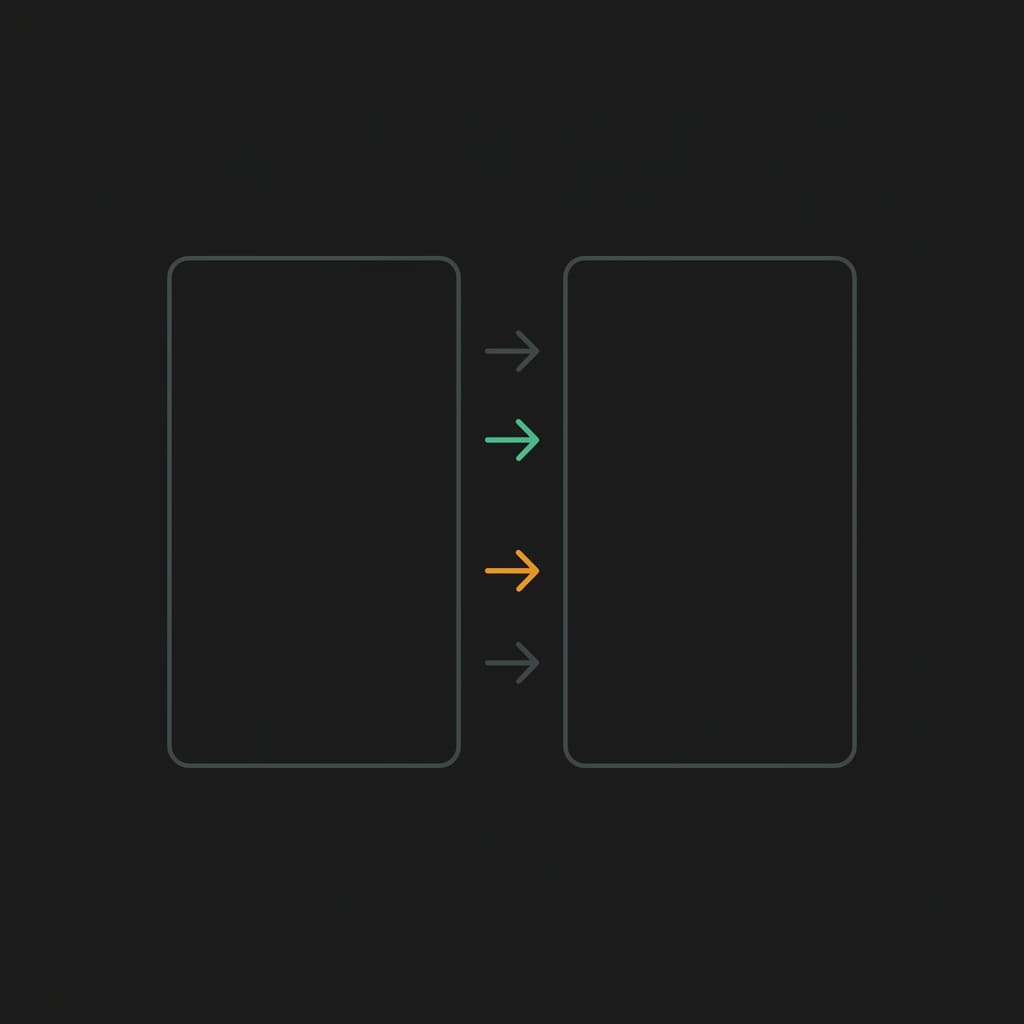
A "hunk" is a contiguous group of changed lines. In the gutter between the two panels, you'll see arrow markers next to each hunk. Click the arrow to merge the entire block from one side to the other.
This is the fastest way to accept or reject a change - one click per block, and the receiving panel updates instantly.
2. Line-by-Line Merge
Sometimes a hunk contains a mix of good and bad changes. In that case, you can merge individual lines instead of the whole block. Hover over a specific line's gutter marker to merge just that line.
This is essential for "cherry-pick" workflows where you only want specific lines from a larger change.
3. Manual Editing After Merge
After merging, you can directly edit the result in either panel. BytesBit Compare uses full CodeMirror 6 editors - so you get syntax highlighting, bracket matching, and standard keyboard shortcuts while editing.
Paste two versions, click the merge arrows, and edit the result. Everything runs in your browser - no data leaves your machine.
Open Compare Tool →Keyboard Shortcuts for Fast Navigation
Efficient merging requires fast navigation between changes. BytesBit Compare supports:
Alt+↓- Jump to the next changeAlt+↑- Jump to the previous changeCtrl+Z- Undo the last mergeCtrl+Shift+Z- Redo
The change counter in the center toolbar shows your position (e.g., "3/12"), so you always know how many changes are left to review.
Undo-Safe Merging
One of the biggest risks with merge tools is making an irreversible mistake. BytesBit Compare treats every merge as a standard editor operation - meaning Ctrl+Z will undo it, just like undoing a typed character.
This is critical for large files where a wrong merge could corrupt the output. You can experiment freely, undo, and try again without reloading the page.
Syntax-Aware Diffing
BytesBit Compare automatically detects the language and applies syntax highlighting to both panels. This makes it easier to review code changes because the diff colors (red/green/yellow) layer on top of familiar syntax colors.
Supported languages include JavaScript, TypeScript, Python, Go, Rust, SQL, JSON, YAML, HTML, CSS, Markdown, and many more.
Exporting the Merged Result
After merging, you can export the result from either panel:
- Copy to clipboard: One-click copy from the panel header
- Download as file: Save the merged output with the original filename
- Continue editing: Keep refining directly in the editor
Conclusion
Online merge tools fill the gap between "just paste it in Slack" and "set up a Git repo." For ad-hoc file merges, config consolidation, and quick cherry-picks, BytesBit Compare gives you the merge arrows and undo safety of a desktop tool - entirely in the browser.