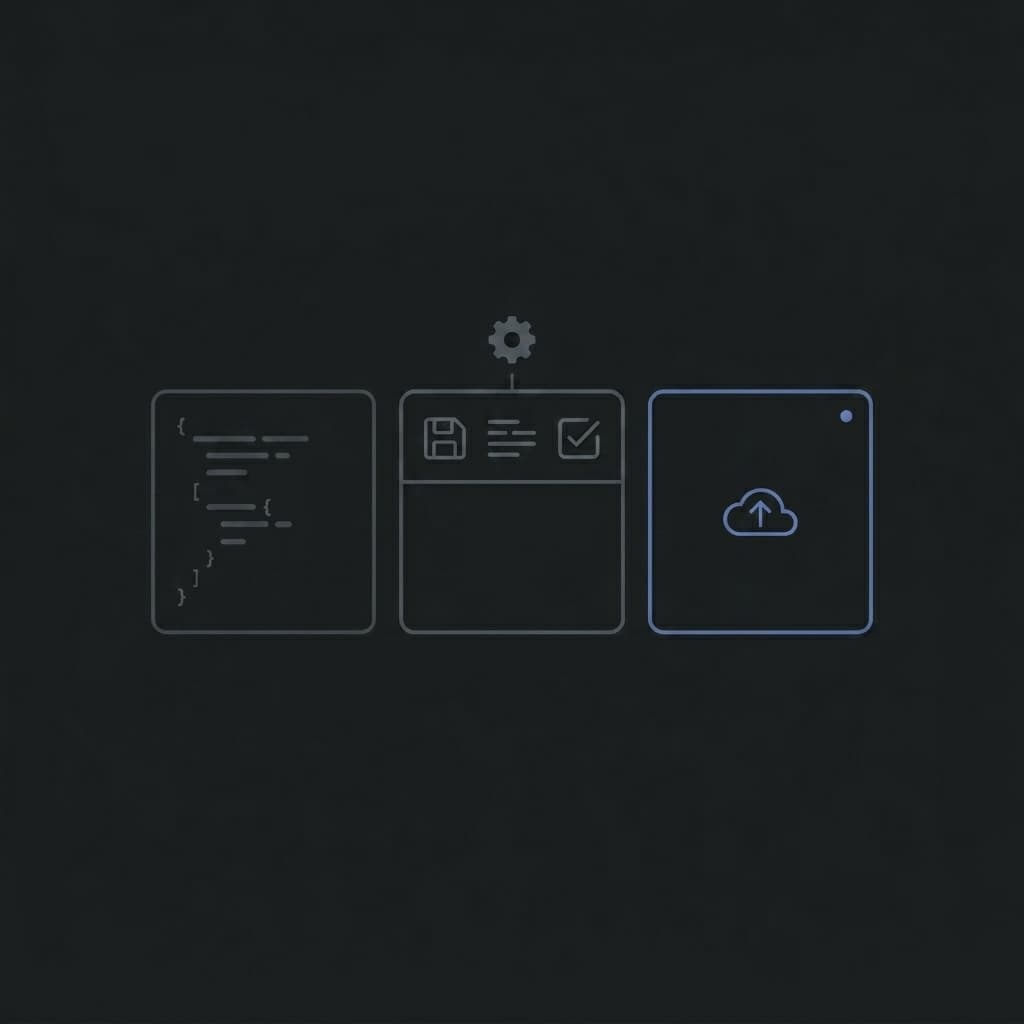
We've been quietly shipping a series of improvements to the BytesBit JSON Editor- refining the interface, consolidating controls, and polishing the visual design to make it one of the most usable dual-panel JSON editors available in a browser. Here's a full breakdown of what changed and why.
A Smarter, Leaner Toolbar
The original layout spread controls across three separate rows per panel plus a dedicated global bar - four rows of chrome before you even reached your data. We redesigned the entire toolbar hierarchy from scratch.
What changed:The global bar (which only held Schema and Settings) was eliminated entirely. Schema validation and editor settings now live at the far right of the left panel's primary menu row, right alongside the Full-screen toggle. High-frequency actions like New, Open, Save, and Copy were grouped as dropdown menus on the left, with Search, Undo, and Redo grouped in the center - all on a single row.
The second row was also simplified: Format, Expand, and Compact collapsed into a single Format ▾ dropdown, and Sort A→Z plus Sort by field collapsed into a Sort ▾ dropdown. The result is two dense, scannable rows instead of four.
Responsive Button Labels
Every toolbar button now shows a text label alongside its icon. On wider panels labels are fully visible; on narrower panels a CSS container query (@container panels (max-width: 480px)) automatically hides them so the icons remain without horizontal overflow. No JavaScript, no resize observers - pure CSS.
Redesigned Center Column
The strip between the two panels - used for copying data, swapping panels, and running diffs - previously rendered as a flat vertical list of inconsistently styled buttons. It's now a proper sectioned column with three labeled groups:
- Copy - two square arrow buttons to push data left or right between panels
- Swap Panels- a single full-width ghost button (previously labelled “Transform”) that swaps the content of both panels
- Differences - a Compare toggle, with Prev/Next navigation and a diff counter badge that appear when an active diff is running
Critically, all center-column buttons now use the same ghost-style treatment as the panel toolbar buttons - background: transparent, invisible border at rest, subtle fill on hover - so the column no longer feels like a separate product embedded inside the editor.
Proper Viewport Height Accounting
The editor shell previously used 100vhfor its height, causing the bottom of the editor to be clipped behind the site's fixed 56 px navbar on every page load. This is now calc(100vh - 56px), so the editor fills exactly the visible viewport without overflow or scroll.
Dropdown Overlay Fix
Panel header dropdowns (Open, Save, Copy, Format, Sort) were being clipped by the panel's overflow: hidden container. The fix: panel containers now use overflow: visible and rely on internal scroll wrappers for the editor content area. Panel headers sit at z-index: 200 and dropdowns at z-index: 300, ensuring they overlay the CodeMirror editor regardless of stacking context.
Dark Mode Syntax Color Refresh
The dark-mode code view now uses a refined color palette for JSON token types:
- Strings -
#fbfbfb(near-white, high contrast) - Numbers -
#3ecf8e(Supabase-green, energetic but not harsh) - Muted text / nulls -
#999999(neutral mid-grey)
Light Mode Syntax Color Overhaul
Light mode received an entirely new syntax palette designed for readability on white backgrounds:
- Strings -
#008000(classic terminal green) - Numbers -
#ee422e(warm red) - Booleans -
#ff8c00(dark orange)
These colors follow a familiar convention used by many desktop IDEs - strings in green, numbers in red/orange - so the editor feels instantly legible if you switch from VS Code or WebStorm.
Hamburger / Navigation Drawer
A global navigation drawer was added to the site header, accessible via a hamburger icon to the left of the BytesBit logo. The drawer surfaces all major tools - JSON Editor, Markdown Editor, Secure Share, Text Compare - in a slide-out panel with card-style entries matching the homepage design. This makes it fast to jump between tools without navigating back to the homepage first.
Dual-panel, fully private, dark and light mode - open it now and format, validate, compare, or transform any JSON file in seconds.
Open JSON Editor →What's Next
We're continuing to iterate on the editor. On the roadmap: keyboard shortcut overlays, per-panel settings persistence (so your preferred view mode is remembered), and a mini-map for navigating large JSON documents. If you have a feature request, open the editor and let us know via the feedback button.